Windows Forms
Build desktop programs with every Windows Forms control, plus a few short helpers that keep small programs small.
The shape of a program#
load "dotnet.ring"

using {                                   # the names start the Windows Desktop runtime and make the Ring thread an STA thread
	"System.Drawing"
	"System.Windows.Forms"             # also loads the GUI helpers
}

oForm = ""                             # globals used by event code
oCount = ""
nClicks = 0

func main

	oForm = uiForm("Click counter",260,130)
	oCount = uiLabel(oForm,"0 clicks",20,15,220,24)
	uiButton(oForm,"Click me",20,50,100,32,"clicked()")
	uiRun(oForm)

func clicked

	nClicks++
	oCount.Text = "" + nClicks + " clicks"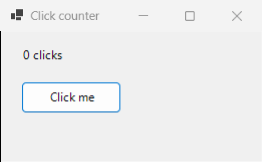
The using block first (it starts the desktop runtime because it names System.Windows.Forms and System.Drawing), then the form. uiRun(oForm) shows the form and runs the message loop (Application.Run). When the form closes the program continues after uiRun.
Programs that start with main() at the top of the file can put the main code before the functions. Define functions after the main code: in Ring a func at the top would swallow the rest of the file.
The helpers#
Everything the helpers do can also be written with the plain classes (see the next section); they exist to keep small programs short. They are loaded together with System.Windows.Forms.
| Helper | What it creates |
|---|---|
uiForm(title, w, h) | a form with a client area of w × h, centered |
uiLabel(parent, text, x, y, w, h) | a label |
uiButton(parent, text, x, y, w, h, clickCode) | a button; clickCode is Ring code or a function call |
uiTextBox(parent, x, y, w, h) | a text box |
uiMemo(parent, x, y, w, h) | a multi-line text box with scroll bars |
uiCheckBox(parent, text, x, y, w, h, clickCode) | a check box |
uiListBox(parent, x, y, w, h) | a list box |
uiComboBox(parent, x, y, w, aItems) | a combo box filled from a Ring list |
uiPanel(parent, x, y, w, h) | a panel |
uiPictureBox(parent, x, y, w, h) | a picture box |
uiTimer(milliseconds, code) | a timer (.Start(), .Stop()) |
uiMenu(form, menus) | a menu bar from a Ring list |
uiRGB(r,g,b), uiColor("Red"), uiFont(name,size,bold) | colors and fonts |
uiMessage(text,title), uiAsk(text,title) | message box, yes/no question |
uiOpenFileName(title,filter), uiSaveFileName(title,filter) | file dialogs (file name or "") |
uiNumber(value) | a number as text without trailing fixed decimals |
Menus#
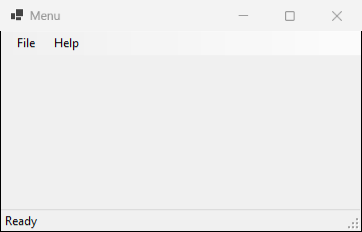
uiMenu(oForm,[
	["File",[["New","say('New file')"],["Open","say('Open file')"],["-",""],["Exit","oForm.Close()"]]],
	["Help",[["About","say('About this program')"]]]
])
Drawing with UiCanvas#
UiCanvas draws on a bitmap shown by a picture box. A color is a name ("Red"), "#RRGGBB" or a .NET Color.
oPicture = uiPictureBox(oForm,10,10,300,220)
oCanvas = new UiCanvas(oPicture)
oCanvas.clear("White")
oCanvas.fillRect(20,20,100,60,"SteelBlue")
oCanvas.fillCircle(200,70,40,"Orange")
oCanvas.drawRect(20,110,120,80,"Black")
oCanvas.line(150,120,290,200,"Red",4)
oCanvas.text("Drawn from Ring",150,10,"Black",12)
oCanvas.show()                         # refresh the picture box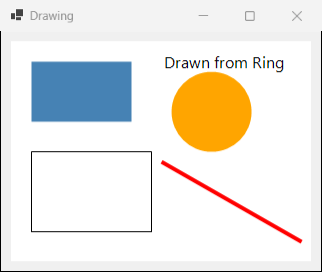
| Method | Does |
|---|---|
clear(color) | fill the whole bitmap |
fillRect(x,y,w,h,color), drawRect(...) | rectangles |
fillCircle(x,y,r,color), drawCircle(...) | circles around the center |
fillEllipse(x,y,w,h,color) | ellipse |
line(x1,y1,x2,y2,color,width) | line |
text(text,x,y,color,size) | text |
setPixel(x,y,red,green,blue) | one pixel, from its red, green and blue parts (0 to 255) |
setPixels(x,y,width,height,rgb) | a rectangle of pixels from one text of 3 bytes for each pixel (char(red) + char(green) + char(blue) ...), row after row, in one call: for pictures made pixel by pixel |
show() | refresh the picture box |
pixel(x,y) | the color of a pixel as a hex text (for tests) |
brush(color), pen(color,width), color(x) | the .NET objects, for anything the helpers don't cover |
Drawing pixel by pixel#
For a picture that a formula makes (a fractal, a plasma, a heat map), compute the color of every pixel in Ring and give them all to setPixels in one call. A call from Ring into .NET costs several microseconds, and setPixel for each pixel is a call for each pixel: about 12 microseconds each, so a picture of 70,000 pixels takes about a second. One text of 3 bytes for each pixel (char(red) + char(green) + char(blue), row after row) is copied into the bitmap in a single step, which takes less than a millisecond for the same picture.
cPixels = ""                                   # 3 bytes for each pixel, row after row
for nRow = 1 to nSize
	for nCol = 1 to nSize
		cPixels += char(nRed) + char(nGreen) + char(nBlue)       # the color of the pixel nCol, nRow
	next
next
oCanvas.setPixels(0,0,nSize,nSize,cPixels)     # the whole picture, one call
oCanvas.show()
Two samples draw this way, when you click Draw. Both compute the colors first and show the times under the button.
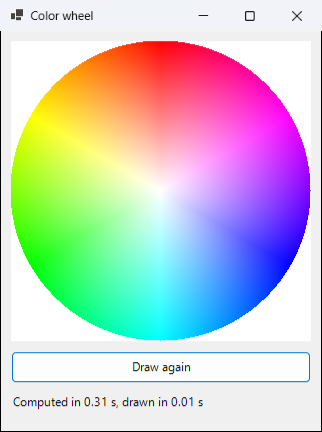
Color wheel (33_color_wheel.ring): the hue of a pixel is its angle around the center and the saturation is its distance from it. The 70,679 pixels of the wheel are computed in about 0.26 seconds and drawn in less than a millisecond. It is the RingQt sample ColorWheel, with a bitmap in a picture box.
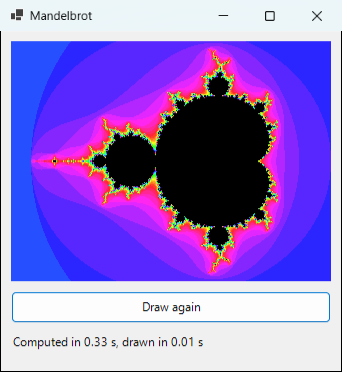
Mandelbrot set (34_mandelbrot.ring): the color of a pixel is the number of steps that z = z * z + c takes to leave the circle of radius 2 (black for a point that never does). The main cardioid and the disc beside it are known to be in the set, so the program does not iterate there; the picture of 320 x 240 pixels takes about a third of a second. The colors of the 80 possible step counts are made once, in a palette.
Both samples are in the Forms samples, with their source.
Every control is available#
The helpers are optional. The whole of System.Windows.Forms (454 classes), System.Drawing and its sub-namespaces are wrapped, so you can use any control directly:
oTree = new TreeView()
oTree.Dock = "Fill"
oRoot = oTree.Nodes.Add("Fruit")
oRoot {
	Nodes.Add("Apple")
	Nodes.Add("Pear")
}
oTree.ExpandAll()
oForm.Controls.Add(oTree)| Group | Controls |
|---|---|
| Text and input | Label, TextBox, RichTextBox, MaskedTextBox, NumericUpDown, DateTimePicker, MonthCalendar |
| Buttons and choices | Button, CheckBox, RadioButton, ComboBox, ListBox, CheckedListBox, TrackBar, ProgressBar |
| Lists and trees | ListView, TreeView, DataGridView |
| Containers and layout | Panel, GroupBox, TabControl, SplitContainer, FlowLayoutPanel, TableLayoutPanel; Anchor and Dock |
| Menus and bars | MenuStrip, ContextMenuStrip, ToolStrip, StatusStrip, ToolTip |
| Dialogs | OpenFileDialog, SaveFileDialog, ColorDialog, FontDialog, FolderBrowserDialog, MessageBox, your own modal Form |
| Graphics | PictureBox, Bitmap, Graphics, Pen, Brush, Font |
| System | Clipboard, Timer, Screen, Cursor, Application |
See the Forms samples — one idea each, with a screenshot and the source.
Events#
oButton.setClickEvent("clicked()")
oText.setTextChangedEvent("textChanged()")
oForm.setFormClosingEvent("closing()")
oPicture.setMouseDownEvent("? aDotNetArgs[2].X")
The code of an event runs on the Ring thread when the message loop dispatches it. Details and warnings: Callbacks & events.
Keyboard in games#
A button (or any control that takes the focus) steals the arrow keys, Space and Enter from the form, so the form's KeyDown never sees them. uiGameKeys fixes that:
oForm.setKeyDownEvent("keyPressed(aDotNetArgs[2].KeyCode)")
uiGameKeys(oForm,"keyPressed(aDotNetArgs[2].KeyCode)")     # after the controls were added
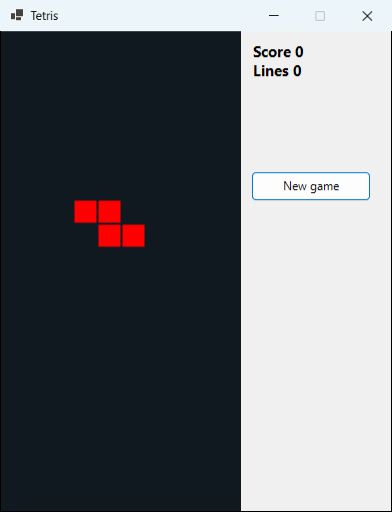
Every control then reports the arrows as normal keys and the form handles them. Tetris, 2048, Sokoban, Snake and Pong use it.
Self-testing programs#
Every sample and application can drive itself and check its results. The checks are in the file selftest/<program>.ring next to the program, and uiRun runs them when the program starts with --selftest:
func selfTest

	oForm.Controls.Item(1).PerformClick()
	dnAssert("one click",oCount.Text,"1 clicks")
uiSendKeys(oForm,"12{+}30{ENTER}") types into the focused control through the real key processing by posting window messages to your own form — it can never type into another program. See Testing.
More#
- Forms samples — short samples, one idea each.
- Applications — 43 complete programs.
- WPF — the other desktop UI framework.
Where to go next#
- The tutorial chapter Windows Forms, and the chapter Projects with windows for complete programs.
- Testing: windows that test themselves.